
Sign Up Guide
Use the Sign Up flow to create your Ocamba account, configure your first workspace, and invite teammates.
Sign Up Flow
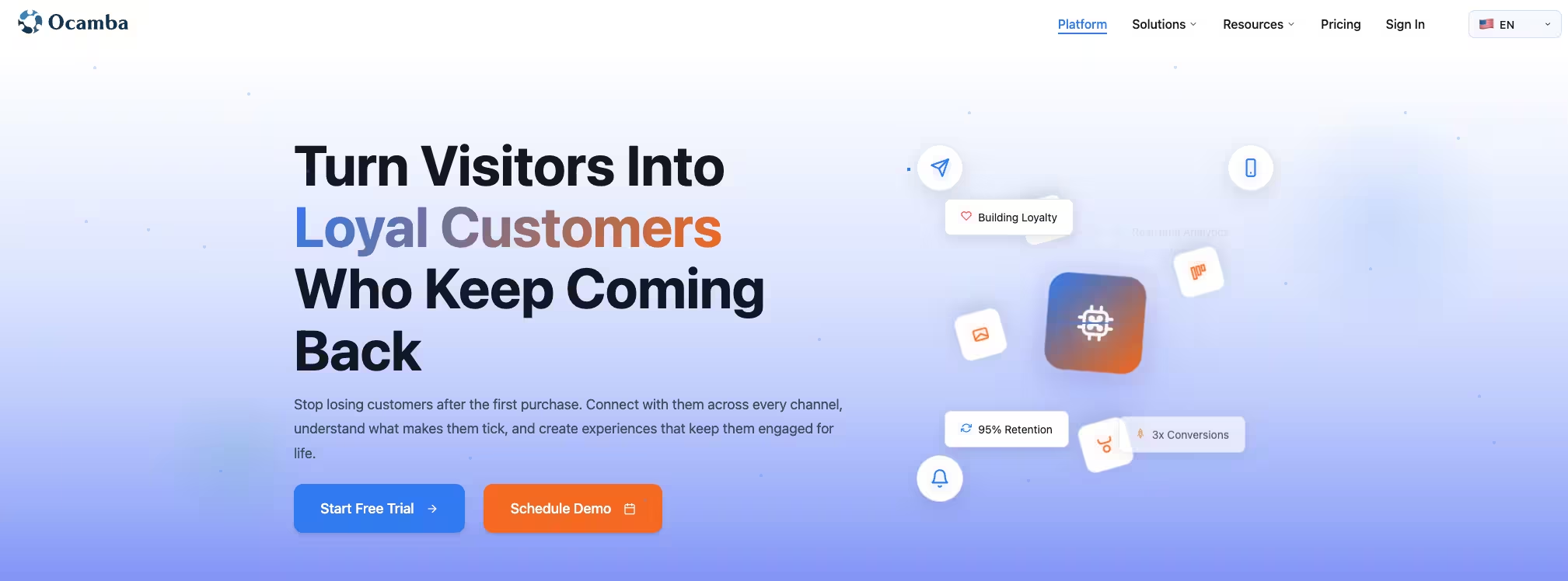
Visit ocamba.com and click the Start Free Trial button.
Before creating your account, accept the Terms of Use and Privacy Policy by checking the box. The page provides two sign-up methods:
- Option 1: Sign up with Google
- Click Sign up with Google to launch the provider window.
- Sign in with your Google account.
- Approve the Ocamba access request; confirm the consent screen in the provider window and return to Ocamba once the provider verifies your identity.
Note: No manual email or password entry is required because the Google IDP manages authentication.
- Option 2: Sign up with Email
- If you choose Sign up with Email, enter a valid email address and a secure password.
- Select Create Account to submit the form. If all data is valid, a verification email will arrive and must be confirmed before you can continue.
Note: Make sure to check your inbox (and spam folder).
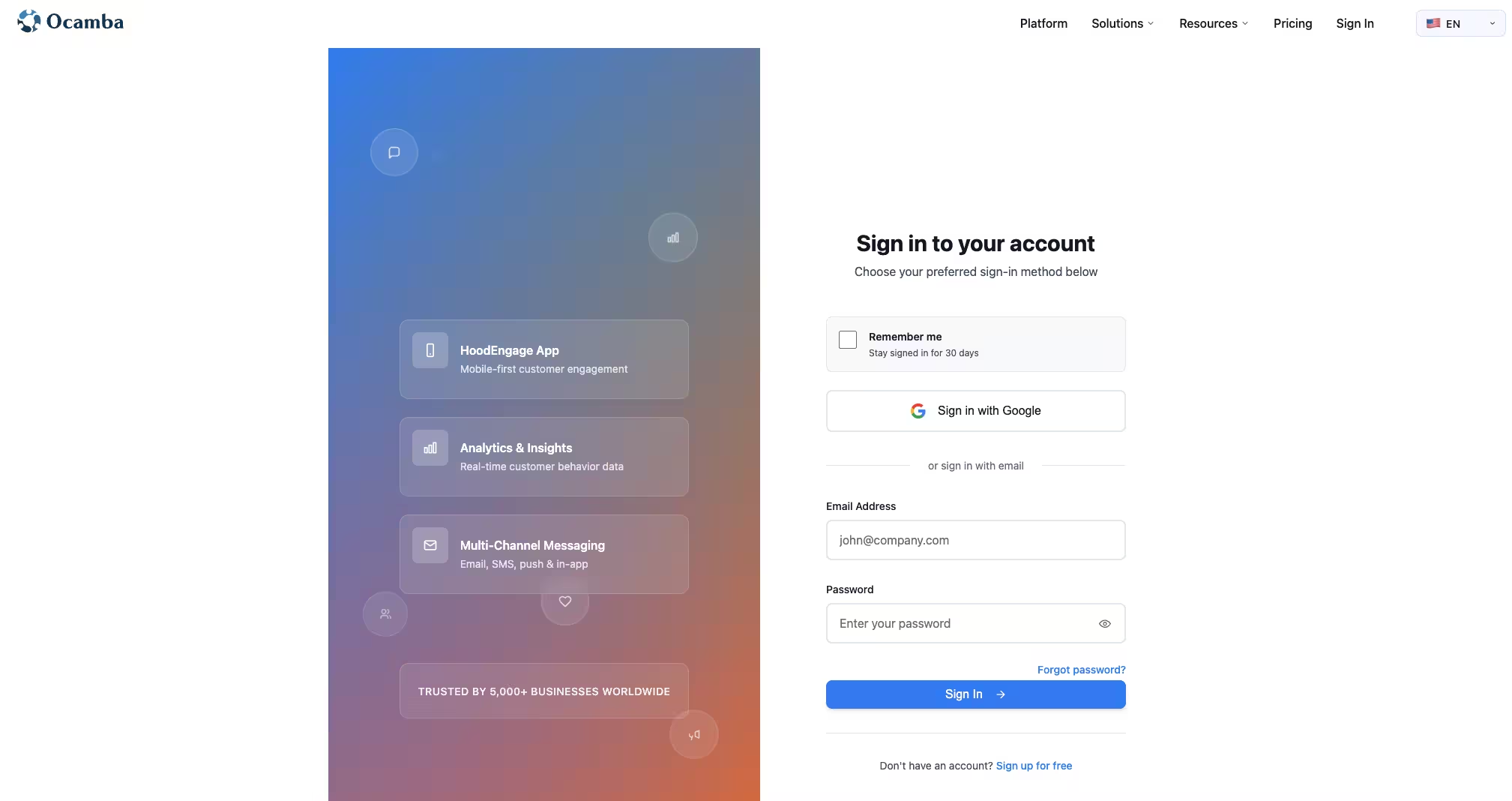
After the provider confirms your identity (or after you verify the email), you are automatically redirected to the workspace creation screen to complete the setup.
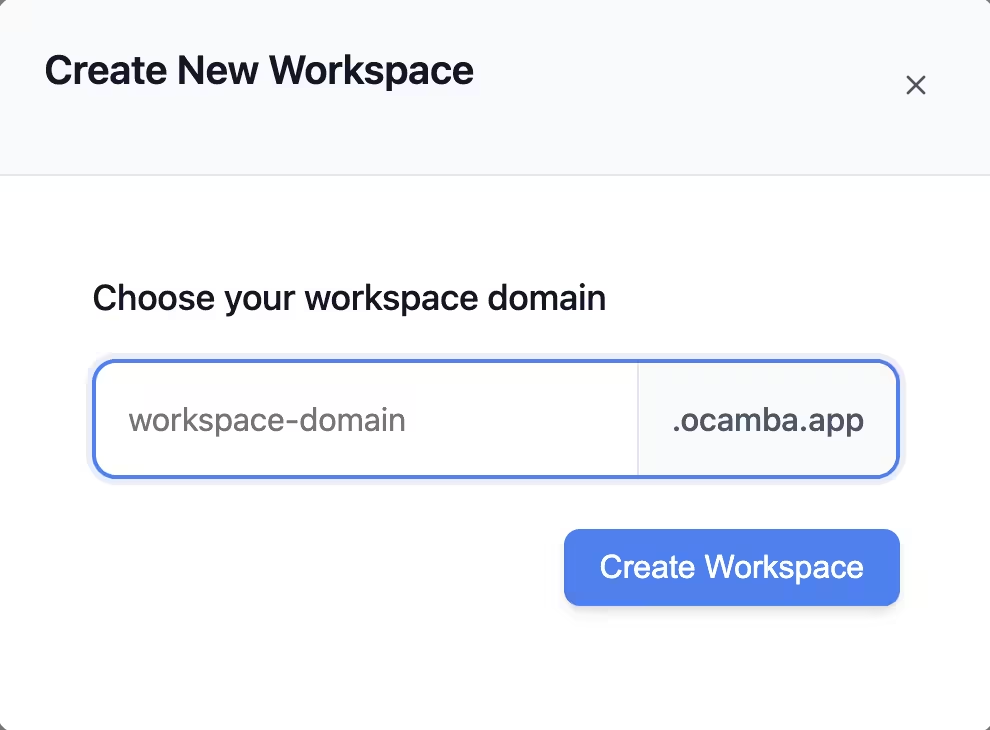
Enter the workspace domain in the workspace-domain.ocamba.app format, click Create workspace, and Ocamba will instantly provision the environment for you.
Invite teammates (optional)
When you are ready to add teammates, click the Settings gear in the top-right corner, choose Members, and use Invite user (more details in the Members guide).
If you run into any sign-up issues, reach out to our support team at [email protected].