
Set up your account
In this article, you’ll learn how to:
- create your Ocamba account;
- create a new workspace or join an existing one;
- access Hood app within Ocamba;
- invite team members and set roles;
- connect your website / app, and messaging providers.
1. Sign up and verify your account
- Go to Ocamba and click Sign In in the top right corner.
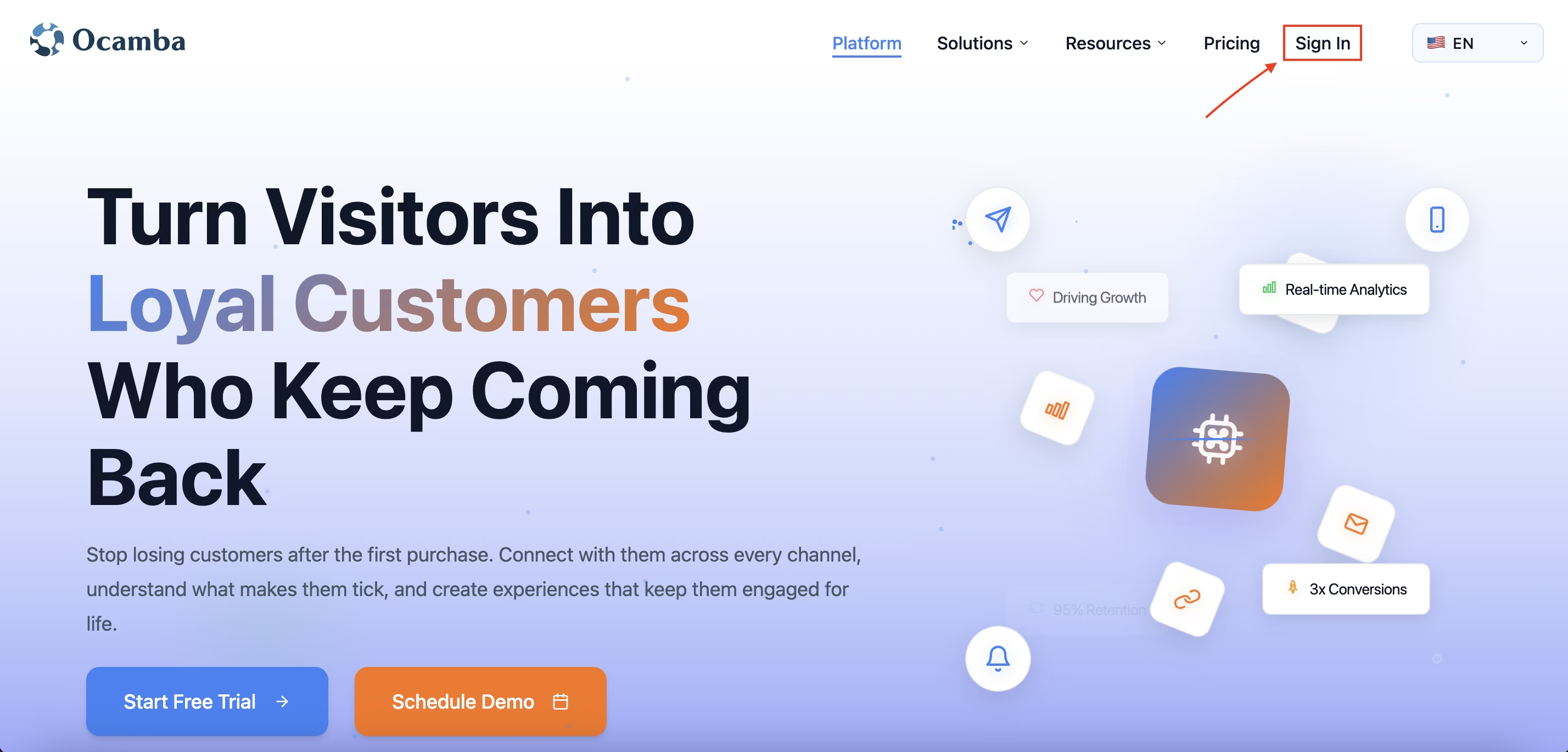
Ocamba website Sign in button
- If you already have an account, you can sign in either using your Google account or by entering your email address and password. If not, scroll down and click Sign up for free.
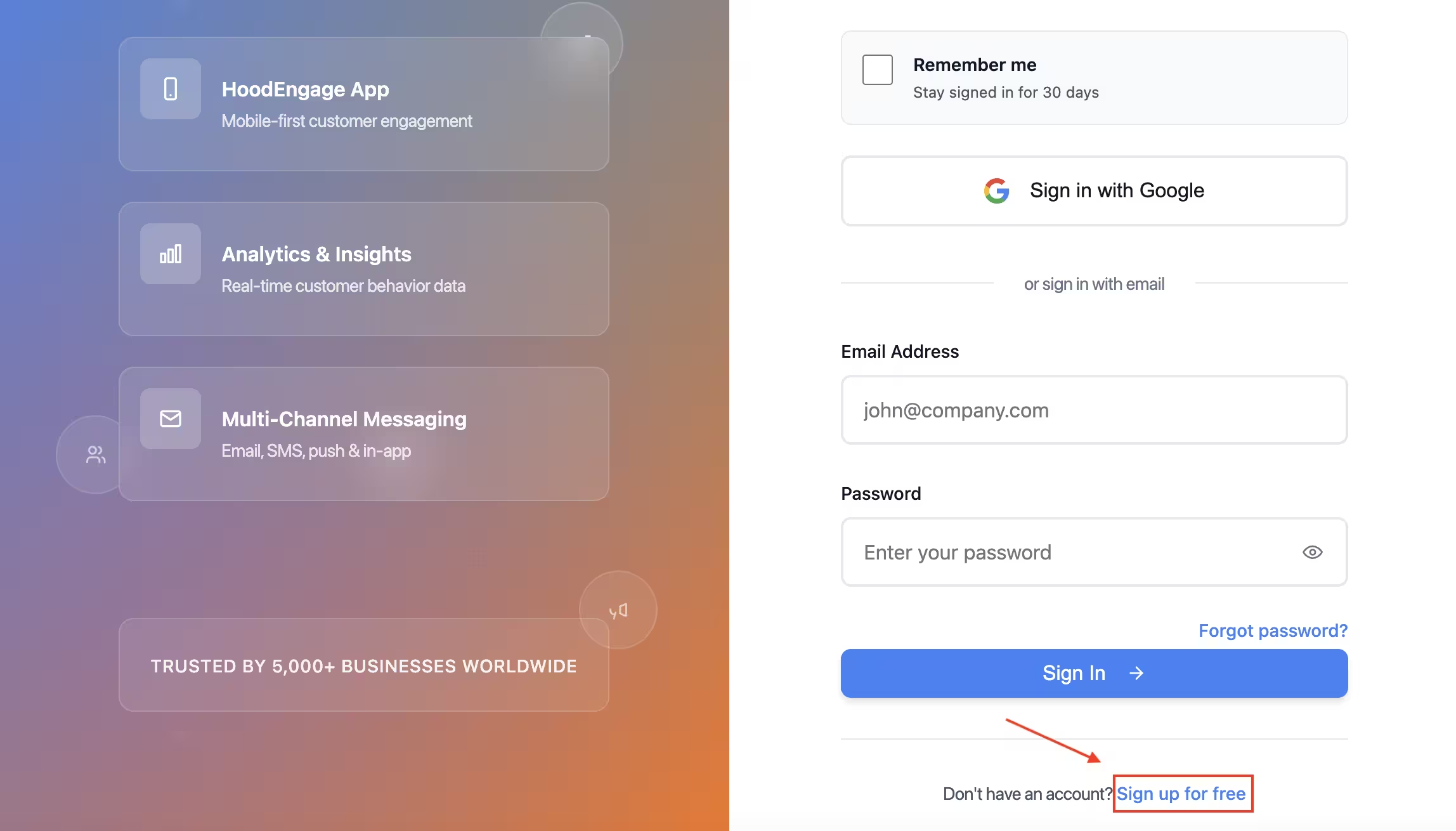
Sign in or Sign up options
- You can sign up using your Google account or by entering an email address and setting up a password.
- Accept Terms & Conditions and click Create account to complete the process.
To learn more about the Sign up process, check out the Sign up guide in Core.
2. Create a new workspace or join an existing one
- Once you’ve created an account, you will be guided to create a new workspace by entering the desired workspace name.
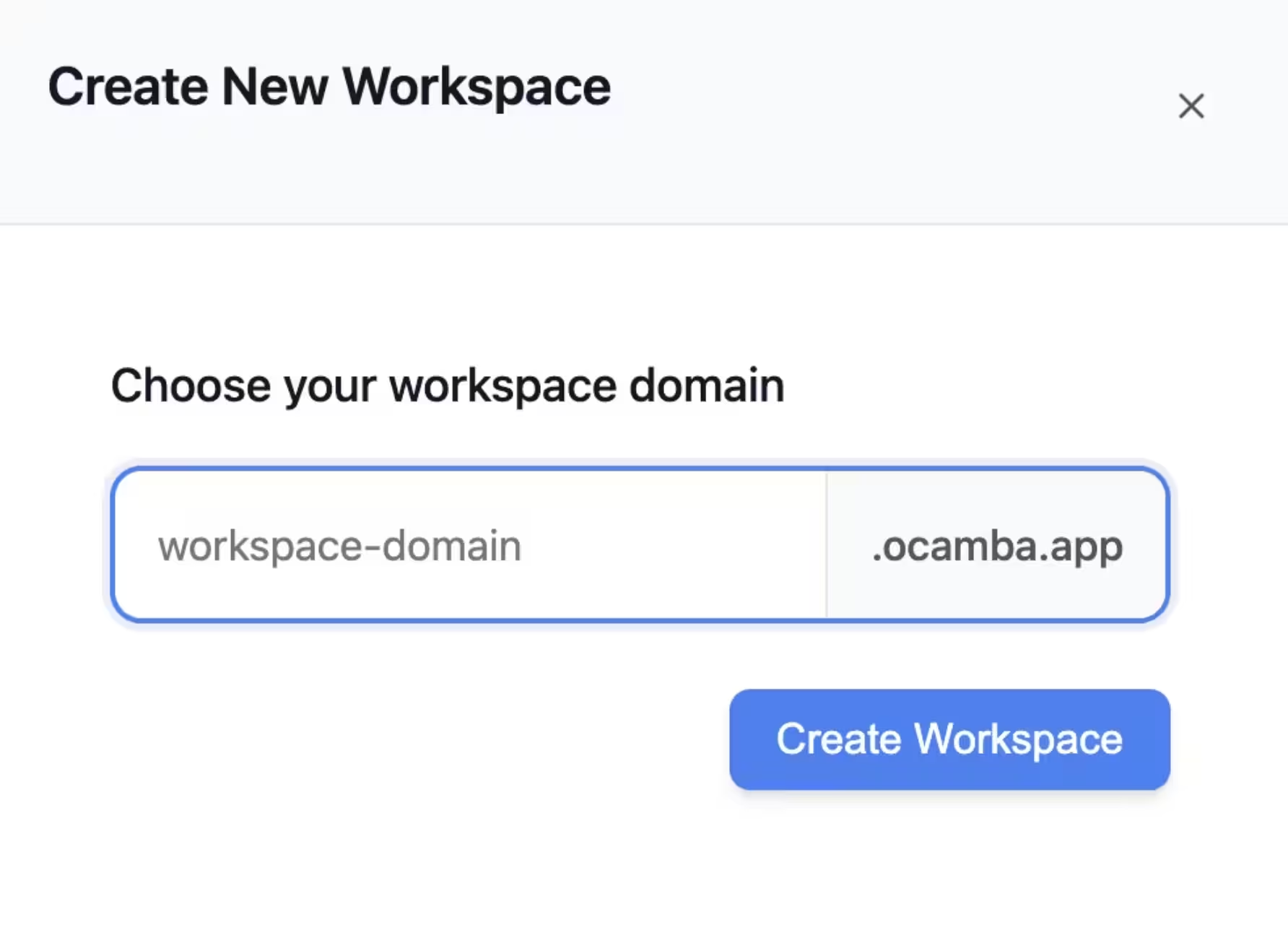
Create new workspace
- After entering the workspace name and clicking Create Workspace, you’ll receive a popup where you must accept the Hood Terms and Conditions. After accepting, you will have access to Hood.
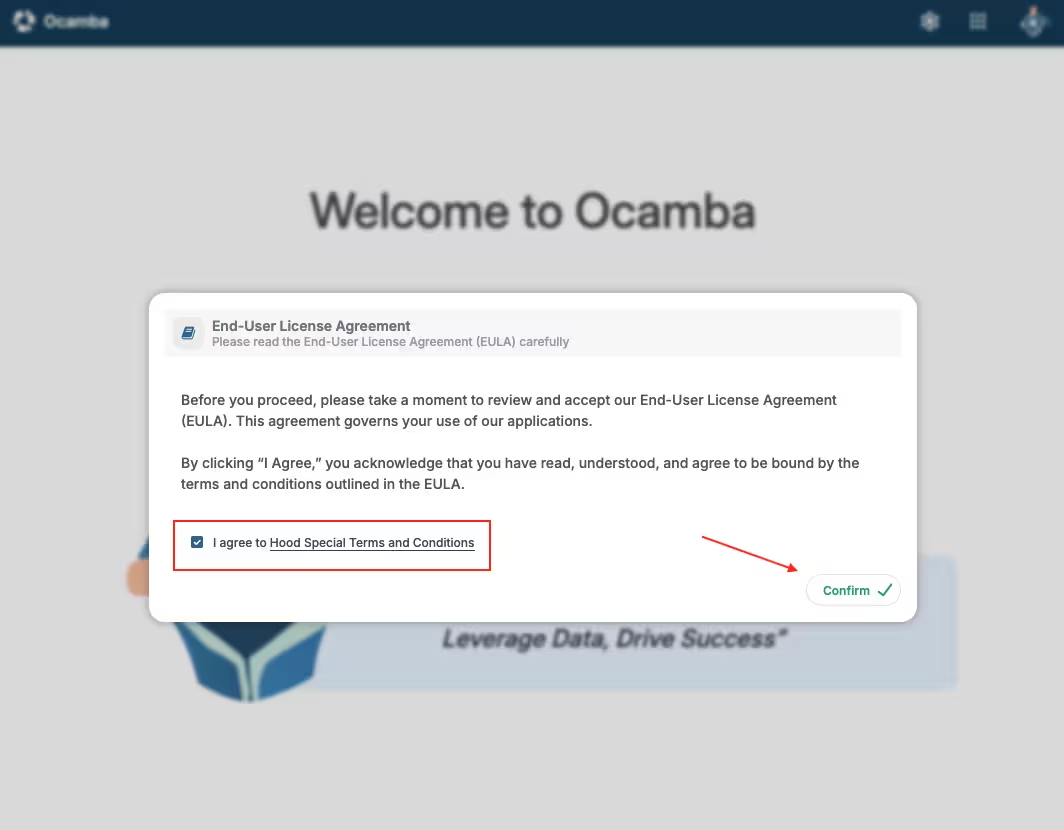
Hood Terms and Conditions popup
- Or, if invited to join an existing workspace, click on the email invitation to join. If you’ve been invited to join an existing workspace that already has Hood, the popup for accepting Hood Terms of Service will not appear.
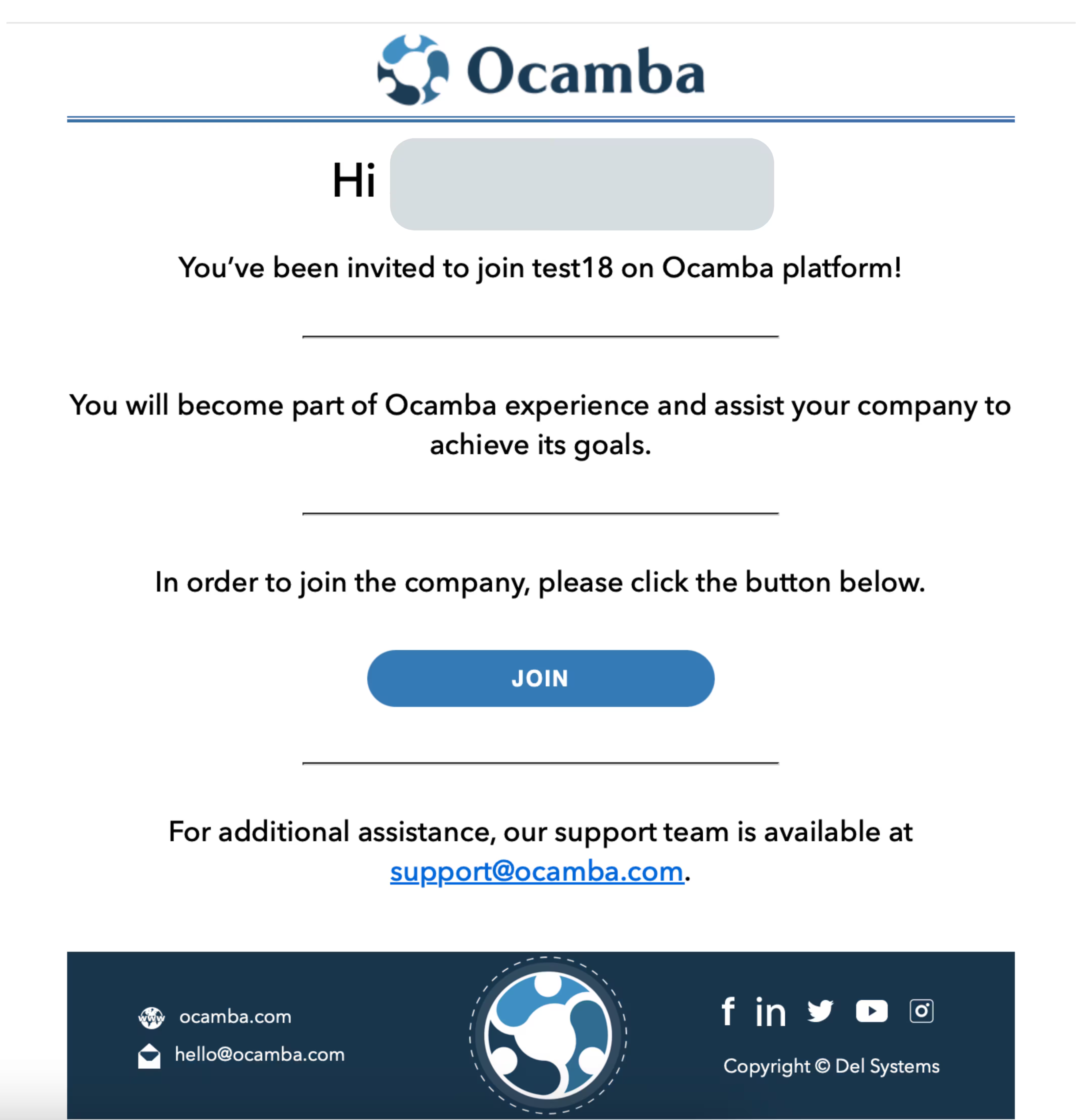
Email invitation to join existing workspace
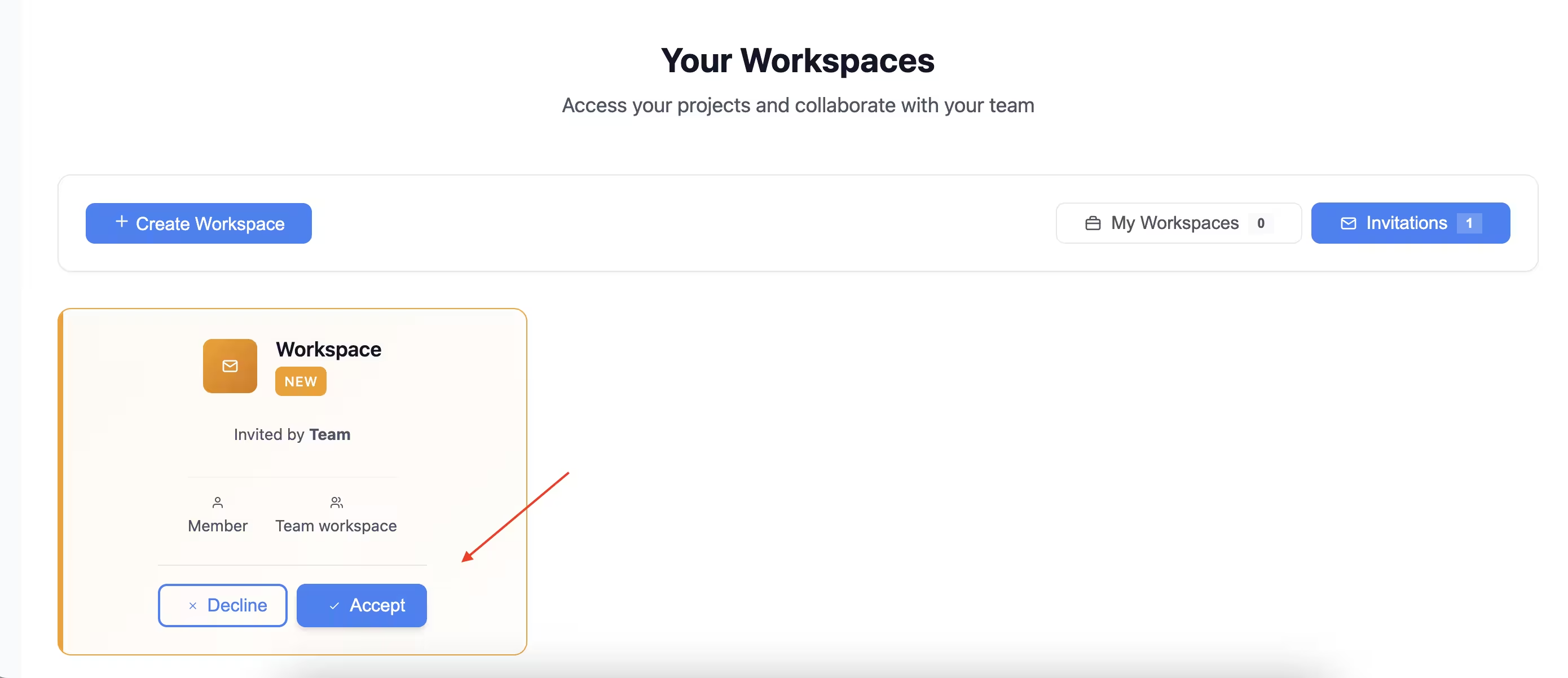
Accept Invitation
After accepting the invitation, you will be added to the workspace.
Once you’re in the workspace, click on the apps icon in the top corner and choose Hood to access the app.
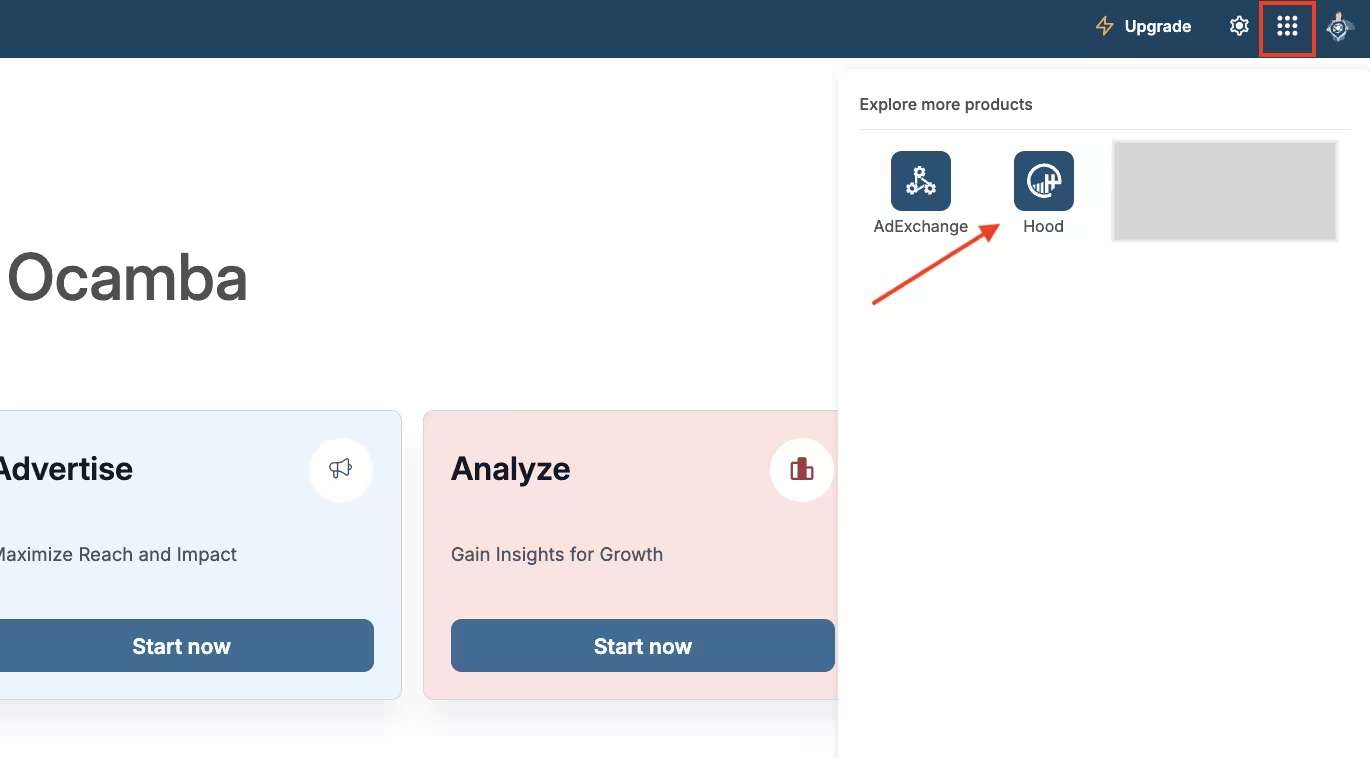
App section - HoodEngage app within Ocamba
3. Invite your team members and set roles
To learn how to invite members and set up roles and permissions, check out the Members, Roles and Permissions guide.
4. Connect your website / app and set up channels
To learn how to connect your website or app and setup channels, check out the Channel setup section of this guide.